Lesson 1 / 1 in Design & UX
How to Create Pro App Store Screenshots in 12 Minutes Without a Designer: AppScreens Practical Guide
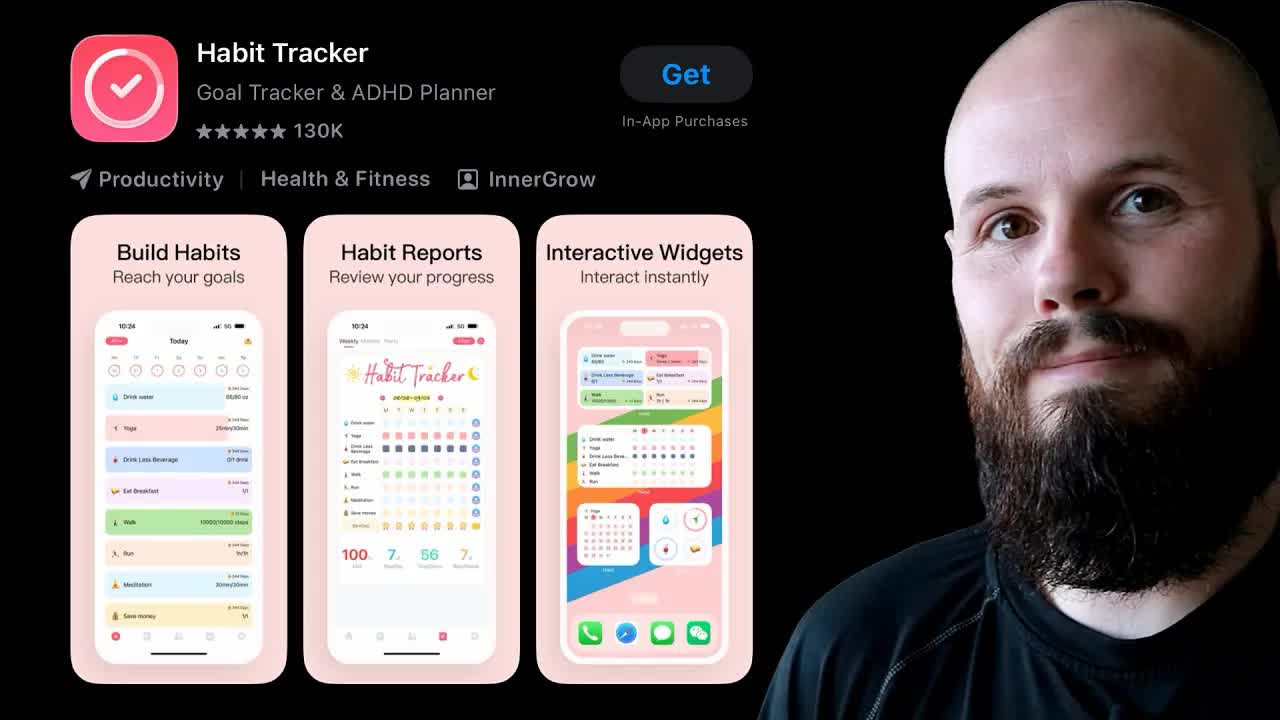
TL;DR
If you have finished building your app but are stuck on screenshots, there is a way to create professional-quality screenshots and upload them with one click -- all without a designer.
How to Create Pro App Store Screenshots in 12 Minutes Without a Designer: AppScreens Practical Guide
One-Line Summary
If you have finished building your app but are stuck on screenshots, there is a way to create professional-quality screenshots and upload them with one click -- all without a designer.
Key Numbers & Data
| Metric | Value | Context |
|---|---|---|
| Max App Store screenshots | 10 | Maximum number of screenshots uploadable to App Store Connect |
| Recommended minimum screenshots | 3 | Number of screenshots visible to users in App Store search results |
| iPhone display coverage | 6.9-inch (1 size) | Uploading 6.9-inch screenshots covers all iPhone display sizes |
| iPad display coverage | 13-inch (1 size) | Uploading 13-inch screenshots covers all iPad display sizes |
Background: Why This Matters
The moment you finish developing an app and are ready to publish it on the App Store, many developers hit the wall of screenshots. Good screenshots are a key factor in determining whether users download your app or choose a competitor's. The problem is that most indie developers are not designers. Screenshot size specifications vary by device, iPad screenshots are required even for iPhone-only apps, and when you factor in multilingual support, the workload skyrockets.
According to the SplitMetrics ASO guide, well-designed screenshots can boost app page conversion rates by 20-35%. Since users spend only about 7 seconds on an app detail page, conveying your app's value in the first 3 screenshots is critical. Top apps update their screenshots 2-4 times per year to manage conversion rates.
That is why dedicated tools like AppScreens are gaining attention. With over 100,000 cumulative users and more than 6 million screenshots generated, this tool lets you quickly create professional screenshots using pre-designed templates and upload them to App Store Connect with one click, saving significant time.
Key Insights
1. A Single Screenshot Can Make or Break Your Downloads
The moment you finish building your app and try to upload it to the App Store, you face the screenshot upload area in App Store Connect. That is when it hits you: "Oh, I need to make screenshots too."
But this is not just a formality. Good App Store screenshots are the key factor in whether users download your app or move on to a competitor's. When scrolling through search results on the App Store, screenshots are the very first thing that catches the eye.
The problem is that most indie developers and solo founders are not designers. They can write code well, but visual design feels overwhelming. However, there is no need to worry. By leveraging pre-designed templates, you can quickly create professional screenshots without a designer.
"Good App Store screenshots can be the difference between a user downloading your app or a competitor's app."
How to apply: Compare your current app screenshots against competitors directly on the App Store.
Tools mentioned:
- App Store Connect - App metadata and screenshot management
2. Just iPhone 6.9-inch + iPad 13-inch: Only 2 Sizes Cover Everything
When you enter the Media Manager in App Store Connect, you see various sizes listed including iPhone 6.9-inch, 6.5-inch, and even older devices. It may seem like you need to create them all, but there is a key tip.
You only need to upload screenshots for the iPhone 6.9-inch display. If you create screenshots based on the largest iPhone (Pro Max) size, the App Store automatically displays those screenshots for all other iPhone display sizes. One set covers all iPhones.
And here is something many developers do not realize: iPad screenshots are required even for iPhone-only apps. This is because iPhone apps also run on iPad (even though the user experience is not great). Similarly, uploading just one set of 13-inch display screenshots covers all iPad sizes.
In conclusion, iPhone 6.9-inch + iPad 13-inch = just 2 sizes to prepare for all Apple devices. The burden of creating dozens of screenshots for each device drops significantly.
"If you upload screenshots for the 6.9 display, which is the bigger iPhones, the App Store will show those screenshots for all of the other displays."
"Even if you only have an iPhone app, you don't have an iPad version, you still need iPad screenshots."
How to apply: Check the required screenshot sizes in App Store Connect's Media Manager and prepare based on iPhone 6.9-inch + iPad 13-inch.
3. One Click on the Simulator Camera Button and You Are Done
The raw source for screenshots comes from the Xcode Simulator. It is efficient to work with both iPhone and iPad simulators running simultaneously.
You can upload up to 10 screenshots, but you must prepare at least 3. This is because 3 screenshots are visible at once when users scroll through App Store search results. The key is to showcase your app's core features and screens -- dashboards, analytics views, scheduling features, and other screens that instantly convey your app's value.
The capture method is simple. Click the camera button at the top of the simulator and the screenshot is saved directly to your desktop. A practical tip: always organize captured files into separate 'iPhone' and 'iPad' folders. As screenshots pile up, files get mixed quickly and you lose track of which ones are for iPhone versus iPad.
"You can have up to 10 screenshots for your App Store Connect page. You don't necessarily have to have all 10, but I would definitely have a minimum of three because three of them show up as user is scrolling."
How to apply: Select 5-7 core feature screens from your app, capture them in iPhone/iPad simulators, and organize by folder.
Tools mentioned:
- Xcode Simulator - iOS/iPadOS app simulation and screenshot capture
4. Just Enter Your App Description and AI Auto-Generates Screenshot Text
Click 'AI Screenshot Creator' on the AppScreens site and the wizard starts. If your app is already on the App Store, you can search and link it directly. If it is not yet published, select 'Create Manually'.
Enter your app name and Bundle ID, then paste your App Store description. If you do not have a description yet, briefly writing your app's core features is sufficient. AppScreens analyzes this text and automatically generates screenshot title text based on ASO (App Store Optimization) best practices.
For example, short and punchy titles like 'Channel Management, Analytics Hub, Smart Planning' are generated automatically. You can choose between short form (one line) and long form (two-three lines), and edit anything you do not like in the editor. Using AI-generated results as a starting point and refining them for your app is the most efficient approach.
"AppScreens is going to use this to create the text on your App Store screenshots based on some good ASO best practices."
How to apply: Prepare a 3-5 line description of your app's core features. This is what the AI uses to generate screenshot text.
Tools mentioned:
- AppScreens - App Store screenshot design and one-click upload tool
5. Pre-Designed Templates + Localization Handles Even English Variations Automatically
AppScreens has numerous pre-designed templates ready to go. The biggest advantage is that even non-designers can use polished screenshots right away. Pick a template you like and use it as-is, or customize it.
After selecting a template, just check iPhone 6.9-inch and iPad 13-inch in the Output Sizes settings and you are done. These two sizes show a red eye icon, meaning 'exporting these sizes automatically covers all other sizes.'
The localization feature is particularly powerful. For multilingual apps supporting Spanish, French, German, etc., simply selecting the language automatically translates the screenshot text. The interesting part is that even English alone has regional variations. What Americans call 'candy' is 'lollies' in Australia and 'sweets' in the UK. AppScreens handles these English regional variations too. When uploading, everything is automatically placed in the correct language and device slots.
"Even if all you have is English, you can have different variations on English. And AppScreens translates all that for you."
How to apply: Define your app's target markets and create a list of supported languages. Even if you only support English, consider US/UK/AU variations.
6. One 'Copy Settings' Click and All 5 Screenshots Have a Unified Design
Using a template as-is works, but customizing it for your brand makes it much better. There are three main elements you can modify.
1. Background: Options include solid colors, gradients, and images. You can pick pre-made gradients from Presets, and creating a single gradient that flows across all screenshots produces a visually cohesive set.
2. Device Mockup: You can change the color of flat device mockups. Switching from black to silver makes the device pop against dark backgrounds. Choose a color that matches your brand tone.
3. Font: You can change the font family, weight, and color. Using the Eyedropper tool to extract colors directly from your app screen ensures perfect color matching between your app and screenshots. Switching to a tech-style font like Roboto dramatically changes the feel.
The most powerful feature is 'Copy Settings'. After configuring the background, device style, and text style on the first screenshot, pressing this button applies the same style to all remaining screenshots at once. Whether you have 5 or 10 screenshots, there is no need to edit each one individually.
"Once I edit this screen, I can just hit apply all settings and I don't have to customize all the other screens."
How to apply: Organize your app's brand colors as HEX codes. You can apply them consistently to screenshot text and backgrounds.
7. ZIP Downloads and Drag-and-Drop Are Old School -- One Click Is All It Takes
Once screenshots are complete, you can review the final results in Preview & Export. All screenshots are organized by iPhone 6.9-inch, iPad 13-inch, and each selected language.
The old method was downloading a ZIP file, opening folders organized by device and language, and dragging and dropping each one into App Store Connect. With just 2 device sizes and 5 languages, the repetitive work was endless.
The core value of AppScreens is this one-click upload. Once you authenticate your App Store Connect account with AppScreens, pressing the 'Upload to App Stores' button places all screenshots in the correct device size and language slots automatically. After uploading, refresh App Store Connect and you will see your screenshots in the 6.9-inch slot, automatically applied to other iPhone sizes as well. Same for iPad.
Authentication setup only needs to be done once and remains usable afterward. The AppScreens documentation details the authentication process and is easy to follow.
"You don't have to waste your time exporting and dragging and dropping all these screenshots into App Store Connect."
"You're going to spend so much time going through that file, dragging and dropping to all the different languages, all the different devices. That's just such a waste of time."
How to apply: Create an AppScreens account and set up App Store Connect authentication. You can then handle screenshot updates with one click every time.
Tools mentioned:
- AppScreens - App Store screenshot design and one-click upload
Action Checklist
Today:
- Check required screenshot sizes in App Store Connect Media Manager
- Select 5-7 core feature screens from your app
- Capture iPhone/iPad screenshots in Xcode Simulator and organize by folder
This week:
- Create an AppScreens account and select a template with AI Screenshot Creator
- Customize background, font, and device colors to match your brand
- Set up App Store Connect authentication and test one-click upload
Long-term:
- Establish a process to update screenshots alongside app updates
- Create screenshot variations for A/B testing
- Leverage localization screenshot auto-generation for multilingual support
References
Related Tools
| Tool | Purpose | Price | Link |
|---|---|---|---|
| AppScreens | App Store & Google Play screenshot design and one-click upload. 70+ language auto-localization, supports all devices from Apple Vision Pro to Watch. 100K+ cumulative users. | Free plan available, paid subscription options (Free Trial offered) | Visit |
| AppLaunchpad | All-in-one screenshot generator with 1000+ templates and 10K+ assets. Integrates design, resizing, localization, and device mockups. | Free plan + paid subscription | Visit |
| Figma (Community Templates) | 500+ App Store screenshot templates. Full design freedom but lots of manual work and no upload automation. | Free (community templates) | Visit |
| App Store Connect | Apple's official platform for app metadata, screenshot, and build management. | Free (Apple Developer account required, 99 USD/year) | Visit |
| Xcode Simulator | iOS/iPadOS app simulation and screenshot capture tool. | Free | Visit |
Related Resources
- App Store Screenshot Sizes, Guidelines and Requirements (2025) (Article) - Comprehensive guide to App Store screenshot sizes, guidelines, and ASO optimization strategies
- Screenshots for App Store and Google Play in 2025: Complete Guide (Article) - Complete guide for screenshot conversion optimization (Value-Usage-Trust structure)
- 5 App Store Screenshot Mistakes Killing Conversions (2026) (Article) - 5 common screenshot mistakes and how to fix them
- How to Optimize Your App Store Screenshots (Article) - AppTweak's screenshot A/B testing and optimization strategy guide
- Top 7 App Store Screenshot Generators in 2026 (Article) - Comparative analysis of 7 leading screenshot generation tools in 2026
Fact-Check Sources
- 3 screenshots visible in App Store search results → https://splitmetrics.com/blog/app-store-screenshots-aso-guide/
- 6.9-inch screenshots cover all iPhone sizes → https://developer.apple.com/help/app-store-connect/reference/screenshot-specifications
- iPad screenshots required even for iPhone-only apps → https://developer.apple.com/help/app-store-connect/reference/screenshot-specifications
- Well-designed screenshots improve conversion by 20-35% → https://splitmetrics.com/blog/app-store-screenshots-aso-guide/
Questions to Consider
Have you objectively evaluated how attractive your current app screenshots are compared to competing apps?
Does your app's core value come through in the screenshots within 3 seconds?
Have you prepared a screenshot localization strategy for entering multilingual markets?
Key Takeaways
- 1Check required screenshot sizes in App Store Connect Media Manager
- 2Select 5-7 core feature screens from your app
- 3Capture iPhone/iPad screenshots in Xcode Simulator and organize by folder
- 4Create an AppScreens account and select a template with AI Screenshot Creator
- 5Customize background, font, and device colors to match your brand
- 6Set up App Store Connect authentication and test one-click upload
- 7Establish a process to update screenshots alongside app updates
- 8Create screenshot variations for A/B testing
- 9Leverage localization screenshot auto-generation for multilingual support
Want to read this later?
Save this insight to access it anytime
Original Video
디자이너 없이 12분 만에 App Store 스크린샷 완성하는 법: AppScreens 실전 가이드